Free · Private · 100% local

Record web demos that point where you point

ReelCap captures any browser tab straight to video — with a highlighted cursor, click ripples, your voice and a webcam bubble. No account, no upload, no watermark.

  • No account
  • No watermark
  • Works offline
  • Free forever

v1.0.0 · Chrome 116+ · Edge, Brave, Arc and other Chromium browsers

reelcap · preview & export
ReelCap preview tab showing a finished MP4 recording with its duration, dimensions and file size, plus Export GIF and Download buttons
Output sizes
5Output sizes
Frame rates
3Frame rates
Languages
27Languages
Bytes uploaded
0Bytes uploaded

5 output sizes · 3 frame rates · 27 languages

A demo nobody can follow is a demo nobody watches

In a screen recording, the system cursor is a 12-pixel arrow and a click leaves no trace at all. Viewers spend the whole video hunting for where you just clicked — and that is exactly the moment they stop watching. ReelCap draws the cursor into the video itself.

Without ReelCap

A desktop recorder grabs the whole window: tabs, bookmarks bar, your other monitor. The cursor is tiny, clicks are invisible, and you spend an evening cropping and zooming in an editor.

With ReelCap

Only the page is recorded — never the browser UI. A hand-drawn cursor and a ripple on every click are painted into the frames, so the finished file already looks edited the moment recording stops.

How it works

Three steps, about two minutes

There is nothing to sign up for and nothing to install beyond the extension itself. Everything runs inside your browser.

  1. 1

    Open ReelCap on the tab

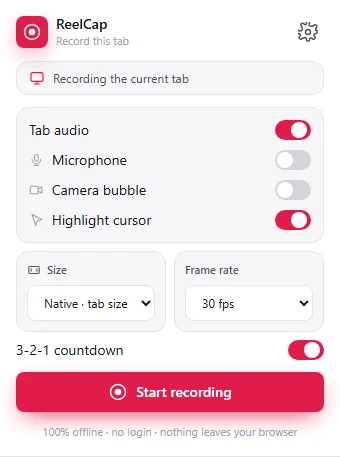
    Go to the page you want to demo and open the popup. Choose an output size and frame rate, and switch on tab audio, your microphone, a camera bubble or the highlighted cursor.

  2. 2

    Record your demo

    A 3-2-1 countdown gives you a beat to get ready, then just use the page as normal. Pause and resume whenever you need to, and stop from any tab with the keyboard shortcut.

  3. 3

    Preview and download

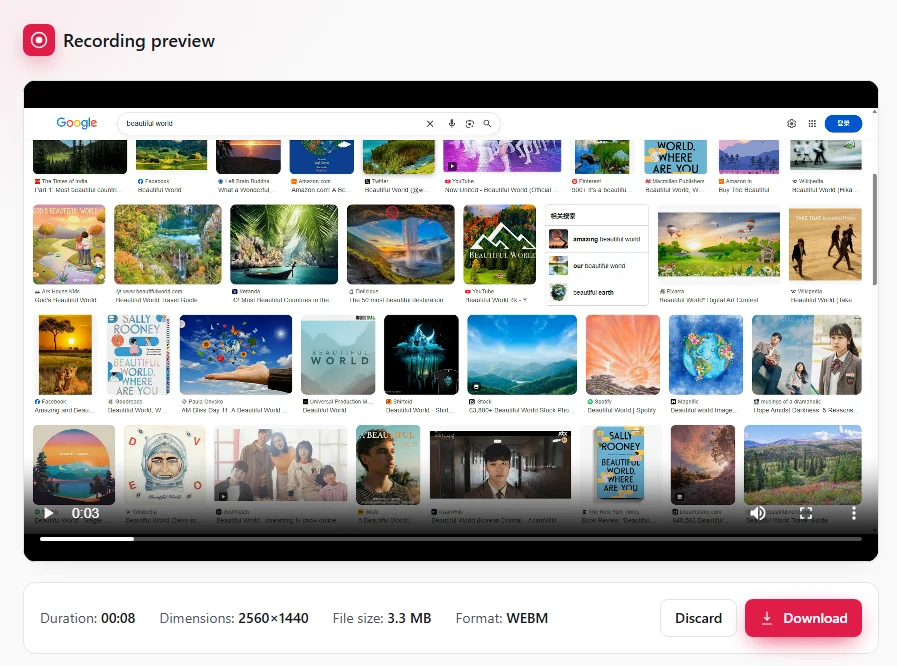
    The recording opens in a preview tab with its duration, dimensions and file size. Play it back, then download the WEBM — or export MP4 or GIF with Pro — or discard it and go again.

Prefer the keyboard? Alt+Shift+R opens ReelCap on the current tab, and Alt+Shift+S stops recording from anywhere.

Features

Everything a demo recording needs, nothing it doesn't

Built for the video you actually ship: a product walkthrough, an onboarding clip, a bug report, a Product Hunt teaser.

Record any browser tab

Capture the active tab straight to a WEBM video. Only the page is recorded — never tabs, bookmarks or your desktop — so the result is clean without a single crop. Restricted pages like the Chrome Web Store can't be captured, which is a browser rule, not a ReelCap limit.
Highlighted cursor and click ripples

ReelCap draws its own cursor into the video and puts a ripple on every click. Viewers always see where you are pointing and when you tapped — and because the hardware cursor is hidden while recording, there is never a double cursor in the export.

Click auto-zoomPro

Every click can pull the camera in: ReelCap zooms smoothly into where you interact, holds while you work, then eases back out. Set the magnification, dwell time and speed once, and an ordinary walkthrough comes out looking professionally edited — rendered live into the video, entirely on your device.

Microphone plus tab audio

Narrate over the page while keeping the page's own sound. Both are mixed into one clean track, and you still hear the tab normally while recording.

Webcam bubble

Overlay your camera as a circle or a rounded rectangle in any corner, at the size you want. Enough face to make the demo personal, not enough to cover the UI.

MP4 exportPro

Record straight to MP4 on browsers that support it, or convert a finished take right in the preview tab — done by your own browser, so the video is never uploaded. No more hunting for a converter when a tool refuses WEBM.

GIF exportPro

Turn a take into a lightweight GIF for a pull request, a README, a doc or a chat message. Capped at 720 px wide and 10–15 fps so the file stays shareable — generated entirely in your browser.

Fixed output sizes and frame rate

Export at the tab's native size, 1080p, 720p, square or vertical, at 24, 30 or 60 fps. Pick the shape once and the file is ready for YouTube, Product Hunt or social.

Countdown, pause and a stop shortcut

A 3-2-1 countdown to get set, pause and resume mid-take, and one shortcut that stops the recording from any tab — no hunting for a floating toolbar.

100% local recording

Capture, compositing and encoding all happen in your browser — your recordings never leave your device, because there is nowhere for them to go. The optional account only holds your plan and free Pro credits, never your videos.

A look inside

Two clicks to record, one to download

The whole extension is three screens. Here they are.

reelcap · recording setup
The ReelCap popup with toggles for tab audio, microphone, camera bubble, highlighted cursor and auto-zoom, plus size, frame rate and output format pickers and the remaining Pro quota

Set it up in the popup

Tab audio, microphone, camera bubble, the highlighted cursor and click auto-zoom are one toggle each. Choose a size, a frame rate and the output format, then hit record — your choices are remembered for next time.

reelcap · preview & export
The ReelCap preview tab playing back a finished MP4 recording, showing duration, dimensions and file size, with Export GIF and Download buttons

Check it before you share it

Every recording lands in a preview tab with its duration, dimensions, file size and format. Play it back, download the WEBM — or export MP4 or GIF with Pro — or discard it and record another take.

reelcap · settings
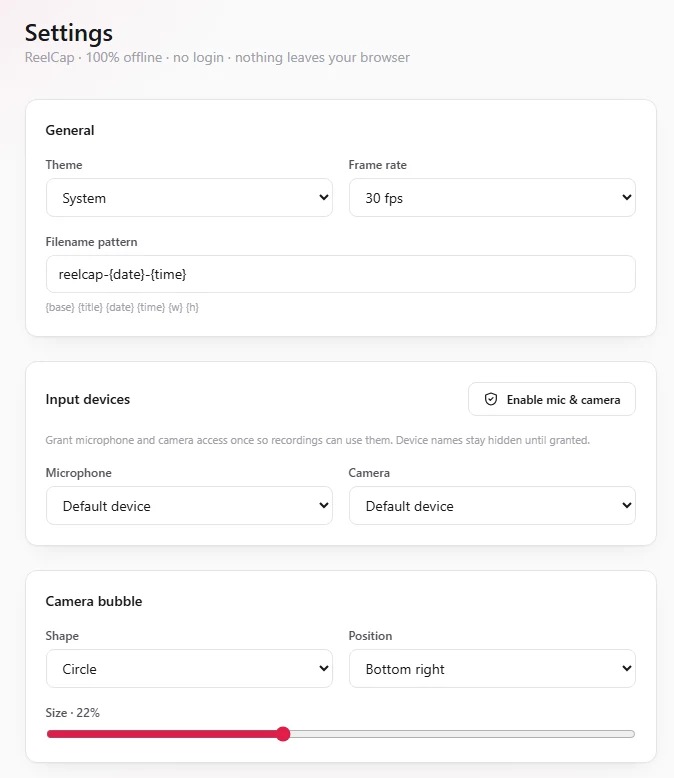
The ReelCap settings page with sections for general options, input devices and the camera bubble

Tune it once

Pick your microphone and camera, set the bubble's shape, corner and size, tune the cursor, click and auto-zoom effects, and choose how recordings are named.

Permissions

Why ReelCap asks for what it asks for

Screen recording needs real permissions. Here is every single one, and exactly what it does.

PermissionWhat it's for
tabCaptureCaptures the rendered video and optional audio of the tab you chose to record. It only starts on an explicit action by you.
offscreenRuns an offscreen document — the only place a Manifest V3 extension is allowed to use getUserMedia and MediaRecorder — to grab the stream, mix the audio, composite the canvas and encode the file.
activeTabGrants one-time access to the current tab at the moment you press record, so its stream can be captured.
scriptingInjects the drawn cursor and click-ripple overlay into the page being recorded, on demand. There is no persistent content script.
tabsReads the active tab's title and URL to name the recording and to route the finished clip to the preview tab.
storageKeeps your settings and the recording state so an in-progress recording survives the service worker being recycled.
unlimitedStorageLets long recordings buffer locally in IndexedDB instead of hitting the small default storage quota.

Host access to all sites is required for one reason only: the cursor and click effects have to be drawn on whatever page you record. It kicks in when a recording starts, ReelCap reads no page content, and the microphone and camera are not in the manifest at all — the browser asks you for those at runtime, and only if you turn them on.

Your screen never leaves your screen

ReelCap has no backend for your video. The tab stream, your microphone, your camera and the finished video are captured, mixed and encoded by your own browser, and the file goes straight to your Downloads folder. Recording needs no account — one only ever holds your plan and your free Pro credits.

Read the full privacy policy
  • No account needed to record
  • No server, no upload
  • No analytics, no telemetry
  • No watermark, no time limit

Guides

How to record the video you need

Practical walkthroughs for the recordings people actually make — with and without an extension.

FAQ

Questions people ask before installing

If yours isn't here, the support page has more — or just email us.

Get product updates

New recording features, export formats, and the occasional subscriber-only discount. One short email when something ships — that's all.

One click to confirm. Unsubscribe anytime.

Record your next demo in the next five minutes

Install the extension, open the tab you want to show, and press record. That's the whole setup.

Free · no account · nothing leaves your browser